
Check your payment history, the status of paid, pending, and canceled invoices, and access tax documents directly in Zenvia Customer Cloud by going to the side menu Settings > Billing.
⚠️ Attention: Only users with Admin or Viewer profile can access this section. You can view all financial information from the last six months.
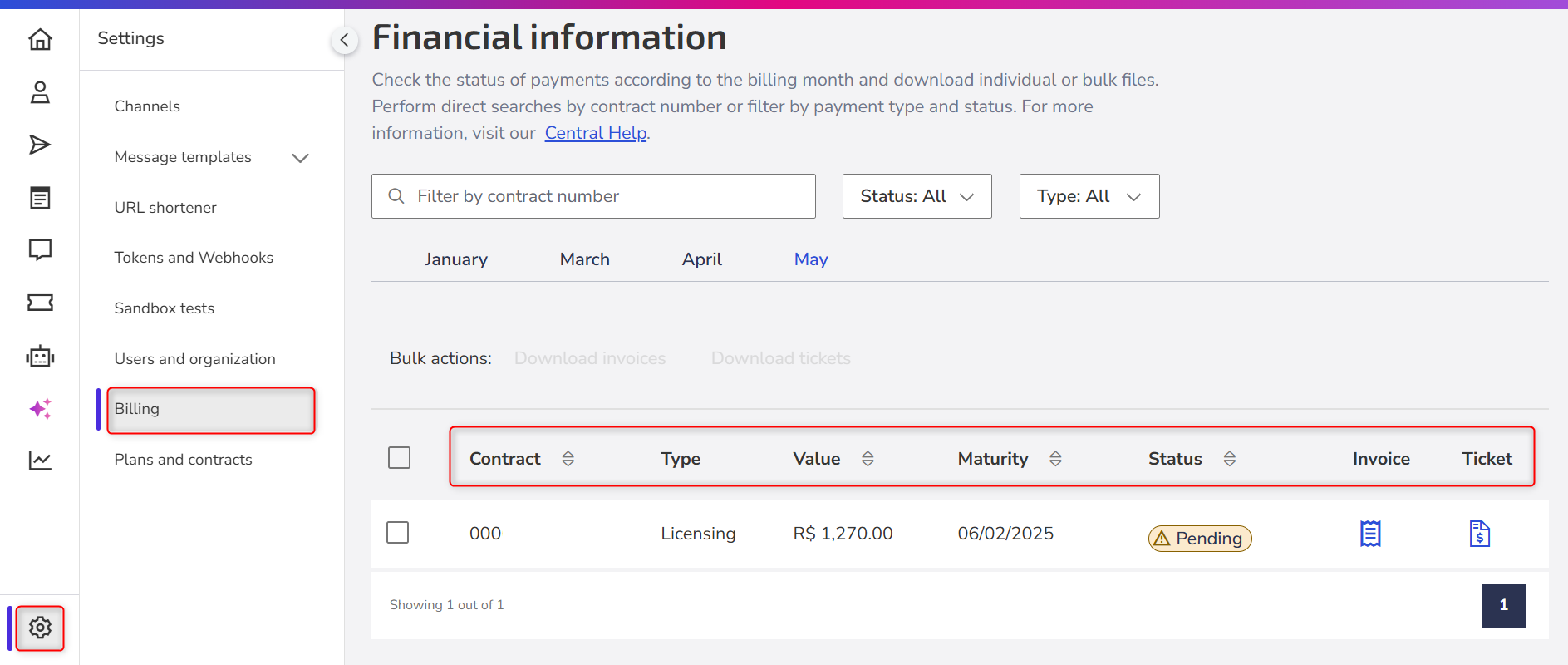
Column overview
| Column | Description |
|---|---|
| Contract | Contract number associated with the invoice. |
| Type | This refers to the type of document:
|
| Value | The total value of the contracted service. |
| Maturity | The deadline for payment (due date). Note: The invoice due date in Zenvia Customer Cloud is not fixed on a specific day of the month. It depends on your account's billing cycle, which begins on the date your organization was created. After this cycle closes (30 days of usage), the invoice is generated and sent within the first few business days of the following period. The due date, in turn, is typically set for the end of the month in which the invoice was issued. In other words: first the cycle closes, then the invoice is generated—and only then is the payment deadline established. |
| Status | Indicates the payment status of the invoice:
|
About invoices and tickets
- Invoice: Invoices are generated and sent by the fifth business day of the month.
- Settlement: After payment, bank settlement may take up to three (3) business days.
- Second copy of the invoice: You can download your payment slip, check your payment history, view the status of paid, pending, and canceled invoices, and issue an invoice in the Customer Area, following the step-by-step instructions. If you need a new copy or an extension of the due date, the second copy can only be generated through the chat with Instant Support.
- The password to open your Invoice PDF consists of the first 6 digits of your company’s Tax ID (CNPJ or CPF) registered on the platform. If you do not have your Tax ID at hand, you can check it directly on the platform by going to :Settings > Financial Information.
💡 Tips
|
Frequently Asked Questions
1. How can I generate a second copy of my invoice?
For payment slips up to 90 days past the due date, it is not necessary to generate a new copy. You can pay the original slip available at: Settings > Financial Information select the slip month and click to download. Our slips are registered, so even after the due date, they will still be accepted for payment.
After 90 days past due, you must contact our finance team to regularize the payment.
2. What does the status "Pending" mean?
The status "Pending" means that the payment has not been identified or properly processed by your financial institution. If you’ve already made the payment, wait for the bank settlement, which can take up to three (3) business days. If the payment was not processed, you can request a new copy of the invoice through the Instant Support
3. What does the status "Canceled" mean?
The status "Canceled" means that the invoice was canceled before payment. This may occur due to an issuance error or a change in the payment method. If it was canceled by mistake, you can generate a new invoice with the correct amount through the Instant Support chat.
4. When can I access my billing document?
The billing document is available for download right after the invoice is paid.
5. What should I do if the payment was not identified ("Pending" status)?
If the payment was not identified:
- Check with your bank if the payment was successfully processed.
- If the payment was made recently, wait up to 3 business days for bank settlement.
- If the issue persists, contact our financial support.
6. I received an SVA invoice, but I couldn’t find the tax invoice. Is this normal?
Yes, this is expected. SVA (Value-Added Service) does not generate an Electronic Service Invoice (NFSe).
7. Why doesn’t SVA have a tax invoice?
According to Complementary Law 116/03, SVA:
Is not classified as a service subject to ISS tax.
Does not qualify as a municipal service provision.
For this reason, the charge is issued through a Service Invoice (Numbered Invoice), rather than a tax invoice.
8. Is this document valid for accounting purposes?
Yes. The SVA invoice:
Is a valid legal document.
Can be used for accounting records.
Contains all operation and consumption details.
9. How does the billing breakdown work?
Your plan may include two types of charges:
- Software Licensing:
Refers to the use of the platform → generates a tax invoice - SVA (messages and channels):
Refers to usage/consumption → generates a Service Invoice - The sum of both corresponds to the total plan amount.
10. Where can I access the documents?
You can download the documents at:
Settings > Financial Information:
Tax Invoice → available after payment (Licensing).
SVA Invoice → available for download in the corresponding billing cycle.
11. Error “title not found” when paying a boleto
If you see the message “title not found” when trying to pay your boleto, this is usually related to the bank registration timing.
12. Why does this happen?
All boletos in Brazil must be registered in the national banking system before they can be paid. This process is not instantaneous and may take from 1 to 4 business hours after the boleto is issued.
13. What should you do?
Wait a few hours and try again. If the boleto was recently generated, try paying later the same day. Attention to weekends and holidays.
If the boleto was issued outside business days:
- The registration may only occur on the next business day.
- Payment should be attempted after this processing.
Important: The error is not related to the boleto due date, boletos can still be paid after the due date (up to 90 days), with automatic updates of interest and penalties.
14. When should you contact support?
If the error persists after 24 business hours, open a financial ticket via Instant Support informing:
- Boleto number.
- Bank where you are trying to make the payment.
- Our team may request a manual registration update to enable the payment.
Still need help with payments?
If after following the steps in this article you still have questions, issues, or concerns related to invoices, billing, charges, or payment information for Zenvia Customer Cloud, please contact our finance team:
📧 Brazil Customers: financeiro@zenvia.com
📧 LATAM Customers: financeiro.cvlatam@zenvia.com