
The WhatsApp calls report allows you to track consolidated information about voice calls made and received through WhatsApp in Zenvia Customer Cloud.
How to access the calls report
In the platform’s main menu, go to Analytics.
Click on Connections.
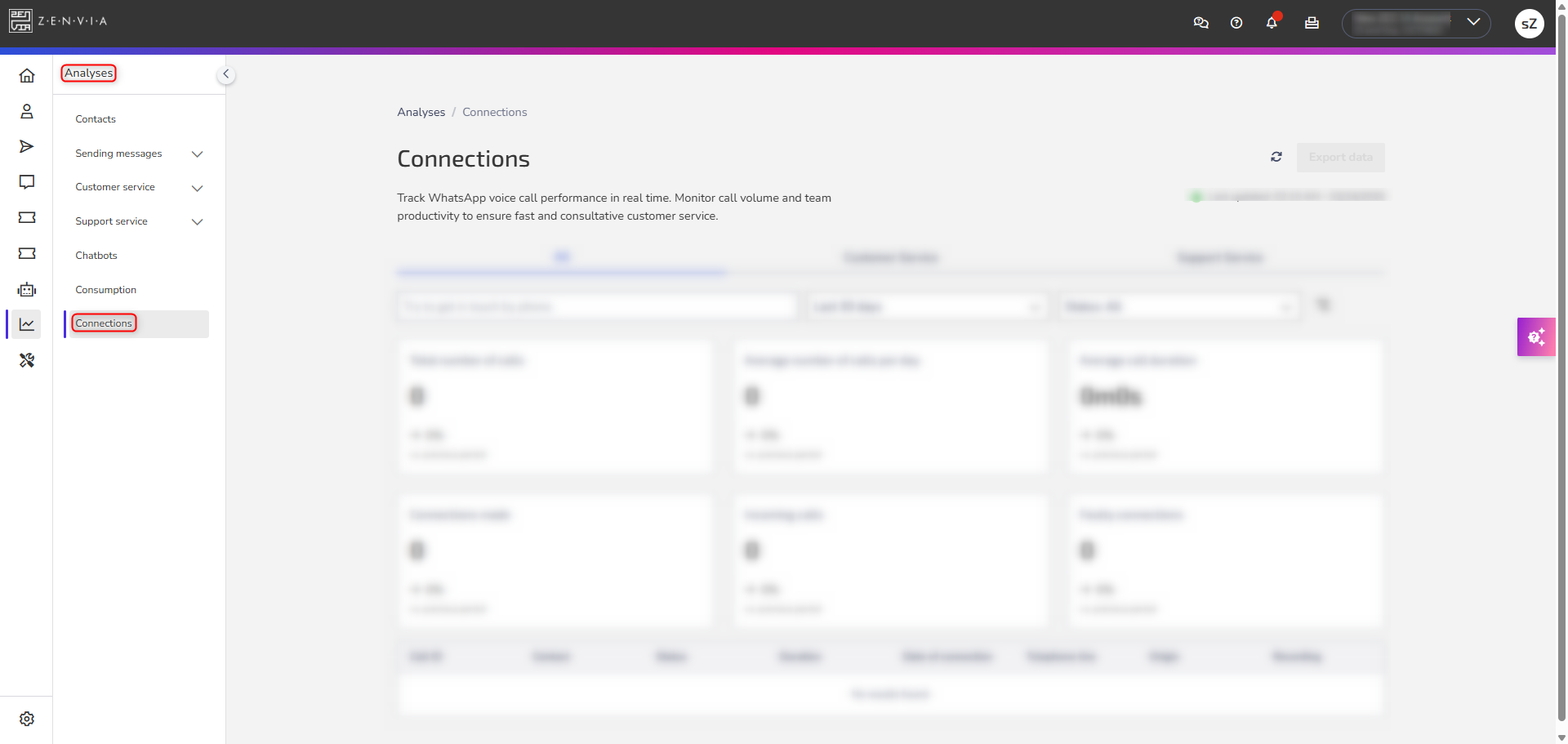
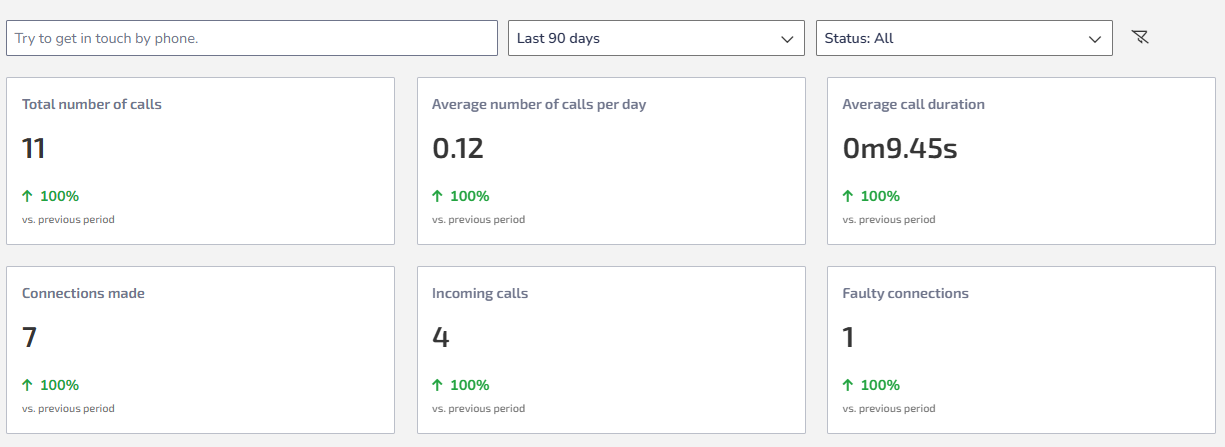
At the top of the page, you can apply filters that affect all indicators and the data table:
Search for a contact directly by phone number.
Period: Today, Yesterday, Last 7, 30, 45, 60, or 90 days.
Status: All, Completed, or Failed.
Indicators available on the dashboard
The dashboard displays cards with the main voice operation indicators:
Total calls: Sum of all call attempts, including answered, missed, outbound, and inbound calls.
Average calls per day: Daily average number of calls, considering the selected period.
Missed calls: Number of calls that were not answered or could not be completed.
Average call duration: Average duration of answered calls, considering only the conversation time.
Outbound calls: Number of calls initiated by company agents to customers within the selected period.
Inbound calls: Number of calls initiated by customers to the company’s WhatsApp number within the selected period.
Failed calls: Number of calls that were not completed due to technical errors, connection issues, or unavailability, regardless of who initiated the call.
Tip: The indicators automatically compare the selected period with the previous one, showing the percentage variation and whether there was an increase, decrease, or stability in results.
Below the indicators, the report displays a table with details of each call made or received. Information shown in the table:
Call ID
Contact
Call status
Call duration
Date
WhatsApp line used
Call recording (play and download)
Exporting the calls report

The report allows exporting data in .csv format for external analysis.
How to export:
Click Export data in the upper-right corner.
Select the desired period.
Choose the fields you want to include in the file.
Confirm the export.
The file will be available for download shortly after processing.
Next step
To understand the meaning of call statuses, how to analyze report metrics, and how indicator calculation rules work, check the article:
👉 How to understand statuses, metrics, and export in the WhatsApp voice calls report