
The Suggestion Box is an interaction channel between customers and the team responsible for product evolution here at Zenvia. In it, you can share improvement ideas, follow suggestions from other users, and vote on proposals that make sense for your business.
We understand that every suggestion is important and should be carefully analyzed. For this reason, the Suggestion Box was created to bring customers closer to the platform evolution process.
Guidelines for using the Suggestion Box
- All ideas are open for voting.
- The most voted suggestions will not necessarily be implemented, as they must align with the product vision and strategy.
- Ideas containing offensive content may be edited or removed.
- Suggestions previously registered through other channels may appear linked to generic users or imported during migration processes.
- The more votes an idea receives, the greater its visibility for analysis by the product team.

How to submit an idea in the Suggestion Box
First, access the Suggestion Box through the top bar available inside Zenvia Customer Cloud.
- When clicking the Suggestion Box link, you will be redirected to this article about the Suggestion Box in our Help Center.
- To create a new suggestion, click the + Give feedback button.
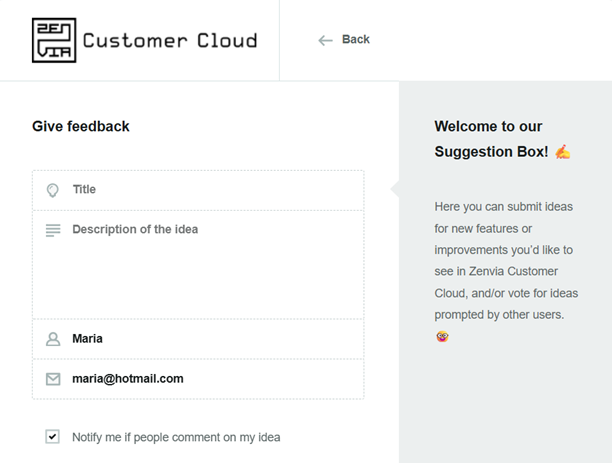
- Before submitting the idea, your name and email will be requested. Your name and email credentials will already be automatically filled in according to your Zenvia Customer Cloud credentials. Therefore, your profile must be logged in at the time of access. If you are not logged in, you will not be able to access the Suggestion Box.
- Then, enter the Title of your idea. It should be short and descriptive.
- In Description of the idea, include your suggestion and describe your idea in more detail.
- You can check the checkbox located at the end of the fields to be notified if someone comments on your idea. Don’t forget to click Submit so that everything typed is properly registered.
Note: While you type the idea title, titles containing keywords equal or related to the inserted content will be displayed in the gray sidebar. This allows you to check for duplicate submissions.
How do I check the ideas in the Suggestion Box?
On the screen below, you can view the number of votes, title, description, number of comments, and current status.
Ideas have the following statuses:


Ideas under evaluation by the product team, which may be accepted or rejected.

Accepted ideas under implementation.

Accepted and implemented ideas.

Rejected ideas that do not align with the Movidesk product vision.
You can also organize them by Most popular suggestions, New suggestions, or Closed ideas.
The search for ideas or keywords is performed through the search bar. The bar considers titles and descriptions similar to the typed content, without differentiating uppercase and lowercase letters.
When clicking on a specific idea, you can view the full content, general information such as status, number of votes, number of comments, which comments were made, suggestion age, and the customer who submitted it. Every comment made on ideas will be recorded with the access login credentials. This is necessary to control the published content.
Done! Now you already know how to use the Suggestion Box in Zenvia Customer Cloud.