
This article explains how to create, configure, and track satisfaction surveys within Zenvia Customer Cloud.
Satisfaction surveys allow you to automatically collect customer feedback following key interactions, helping your company gauge customer experience and identify areas for improvement.
Before creating a survey, ensure that:
You have access to the Expert Agents and Support Desk modules.
Your delivery channels (WhatsApp, email, SMS, or RCS) are configured and active.
Your user profile has the required permissions to create and view surveys and reports.
The satisfaction survey is a feature that can be set to trigger automatically at the end of an interaction, such as the closing of a support ticket. The survey uses the interaction’s primary channel as the default delivery method and can be adapted based on each module's context.
💡Tip: It is not possible to create multiple questions within a single survey. Each survey must be created using only one question type. To ask additional questions, you can create separate surveys, each with a different question, or use the Include comment field to collect additional text from the respondent.
Available Survey Types
When creating a satisfaction survey, you can choose from different methods depending on the type of feedback you wish to collect.
NPS (Net Promoter Score)
Uses a 0–10 scale to measure the likelihood of a customer recommending your company, product, or service. It is ideal for understanding customer loyalty and identifying promoters, passives, and detractors.
CSAT (Customer Satisfaction Score)
Measures customer satisfaction regarding a specific experience, such as a support session or interaction. It can be configured using:
Numeric scales
Emojis (Smiley faces)
Stars (1 to 5)
Agreement (Binary)
Allows for simple questions with straightforward answers, such as:
Yes or No
Positive or Negative
Useful for quick confirmations or general sentiment.
Open-Ended Question
Allows customers to provide free-text responses. This is best for collecting qualitative feedback, allowing customers to describe their experiences or offer suggestions.
Step-by-Step: Creating a Satisfaction Survey
In the sidebar menu, go to Tools > Surveys.
Click Create New Survey.
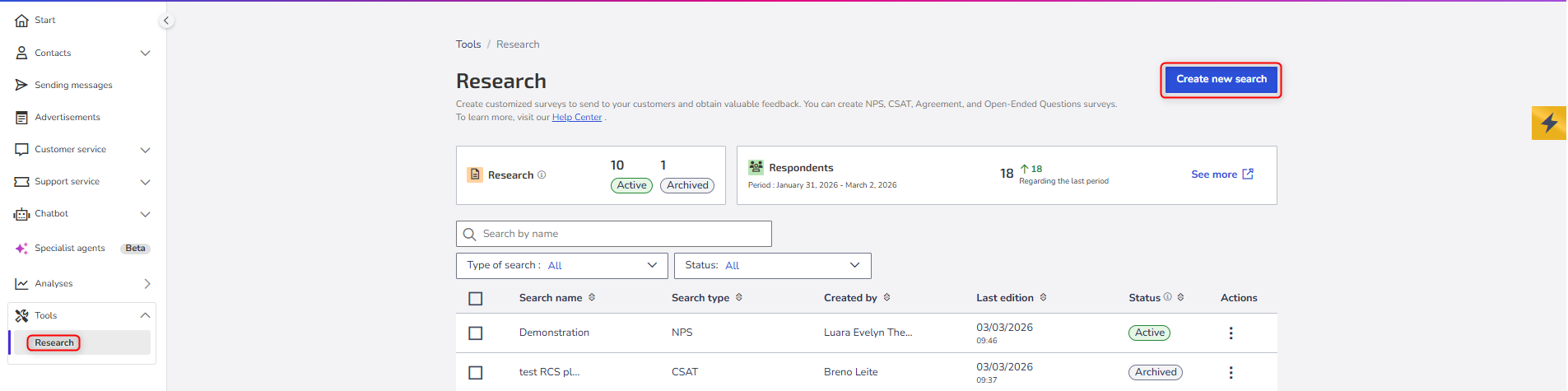
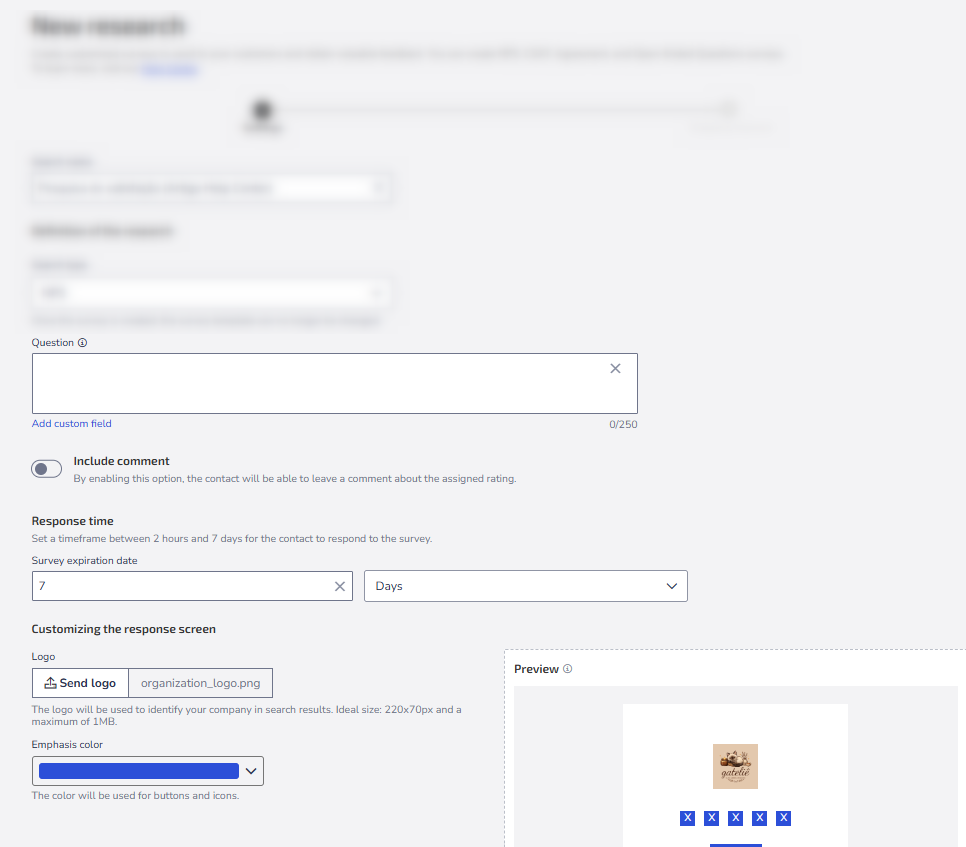
Fill in the required fields:
Survey Name: For internal identification.
Survey Type: Choose NPS, CSAT, Agreement, or Open-Ended.
Field Customization
Standard fields appear across all survey types, while others are specific to your selection.
Standard Fields:
Question (Default Example)
Define the message shown to the customer. NPS Example: "Hi, {{name}}. On a scale of 0 to 10, how likely are you to recommend Zenvia Customer Cloud to someone you know?"
Add Custom Field
Insert dynamic variables (e.g., contact name or ticket number) that auto-populate upon sending.
Include Comment
If enabled, the contact can leave additional feedback. You can set comments as mandatory for "No one," "Everyone," or "Specific ratings" (e.g., only for detractors in NPS).
Response Deadline
Set the timeframe for the contact to respond (from 2 hours up to 7 days).
UI Customization
Upload a logo to brand your survey and choose a Highlight Color for buttons and icons.
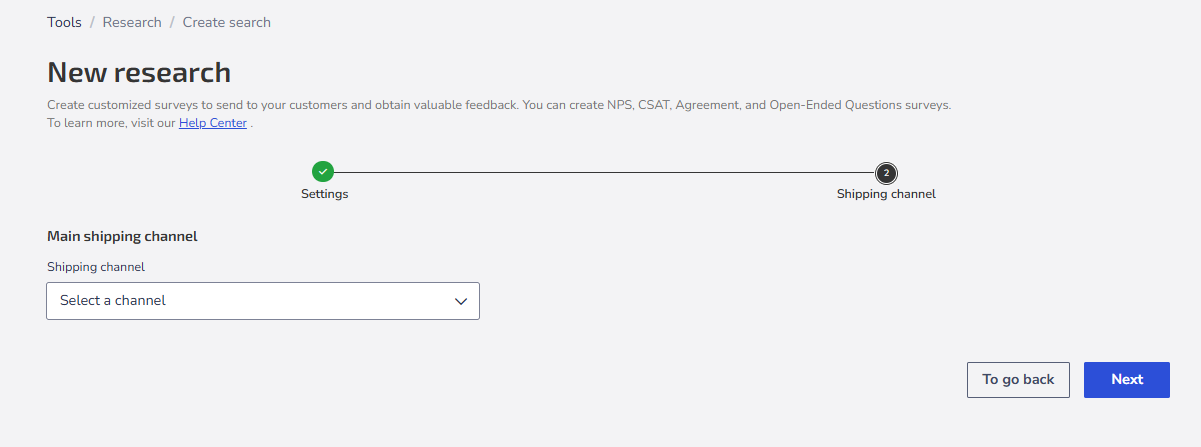
Phase Two: Delivery Channel
Select the delivery channel for the survey.
Configure the specific fields for the chosen channel.
💡 Tip: You can set up a fallback channel. This second channel is used if the customer does not interact with the primary channel within the defined deadline.
Click Next. Your survey is created! Now, you need to define when and to whom it will be sent.
Activating the Survey (Automation)
After creation, the survey is not sent automatically. You must link it to a Success Expert Agent. This agent defines the triggers and target audience.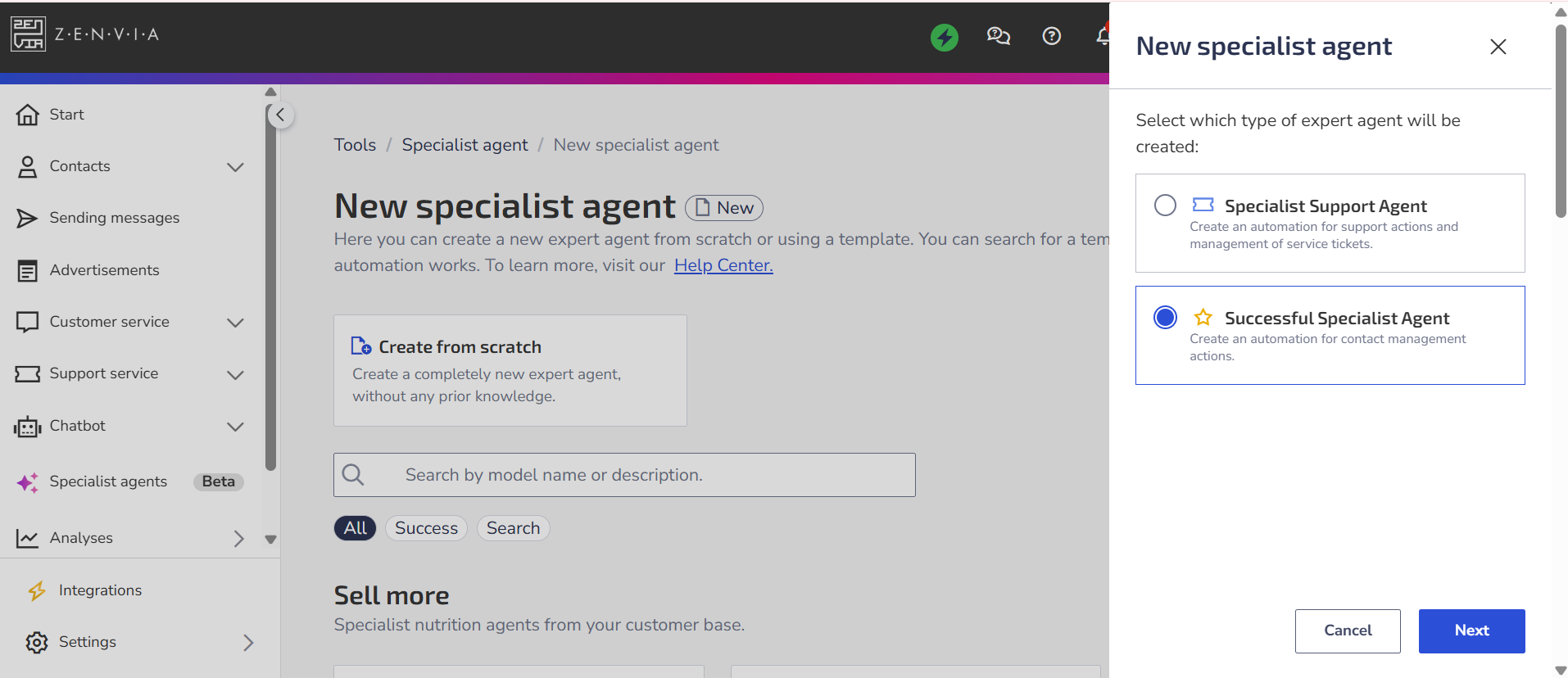
Access Expert Agents in the sidebar.
Click Create New Expert Agent > Create from Scratch.
Select Success Expert Agent and click Next.
Fill in the basic info: Name, Description (optional), and Tags (up to five for filtering).
Defining Triggers (Conditions)
There are two main ways to trigger a survey:
Data-based Condition: Based on information stored in the contact database. Example: To survey contacts with "Negative" sentiment:
Category: Contact Sentiment
Operation: Equals
Value: Negative.
Event-based Condition: Triggered by a specific system action. Example: To trigger a survey when a support ticket is closed:
Category: Support
Operation: Equals
Value: Interaction Closed.
Finalizing the Action
Go to Actions.
Select Survey as the type.
Choose the survey you created.
Click Create Expert Agent to activate.
💡 Tip: For event-based conditions, you can also use the "Surveys" category to create follow-up actions. For instance, if a customer gives a low score, you can automatically trigger a WhatsApp message or transfer them to a live support agent (handoff).