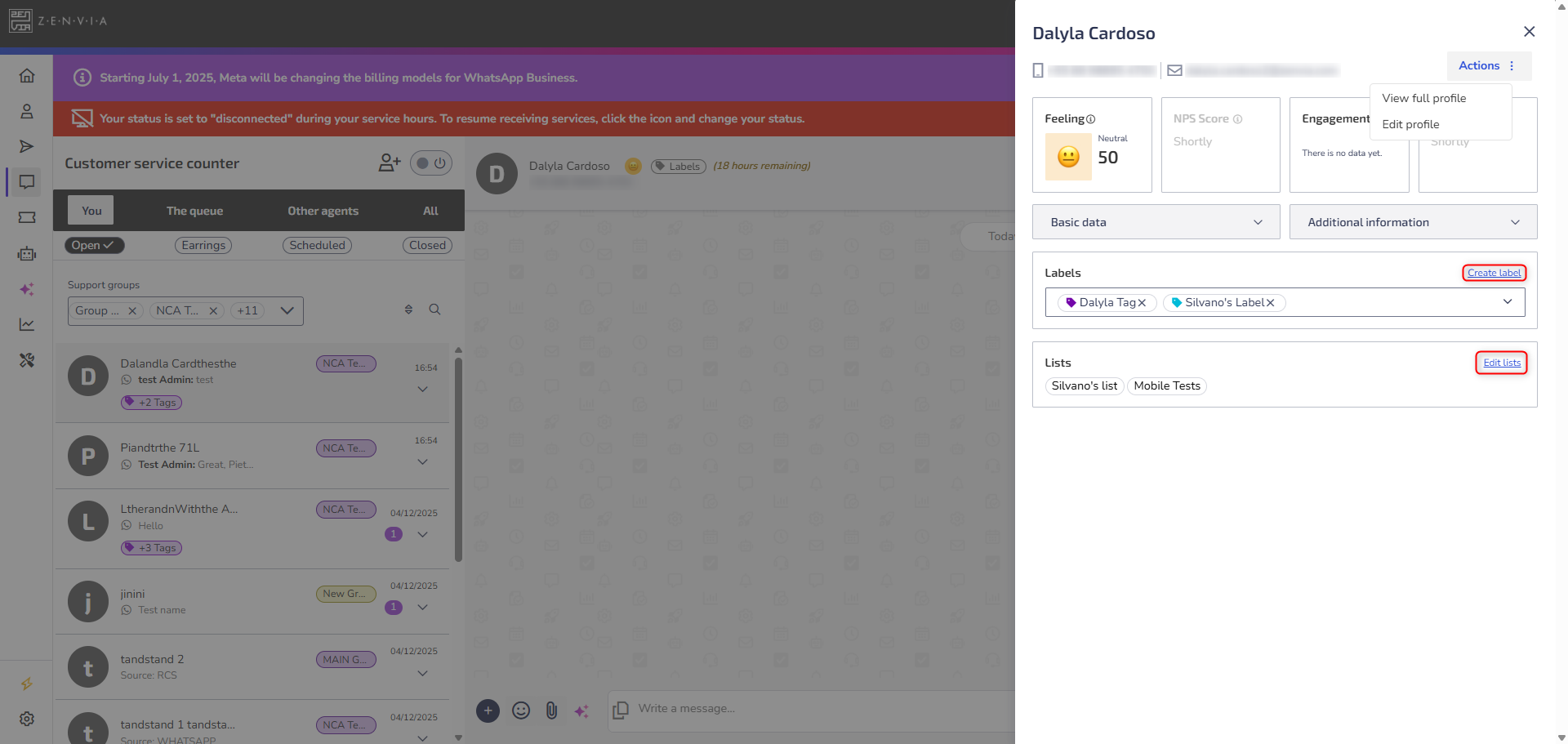
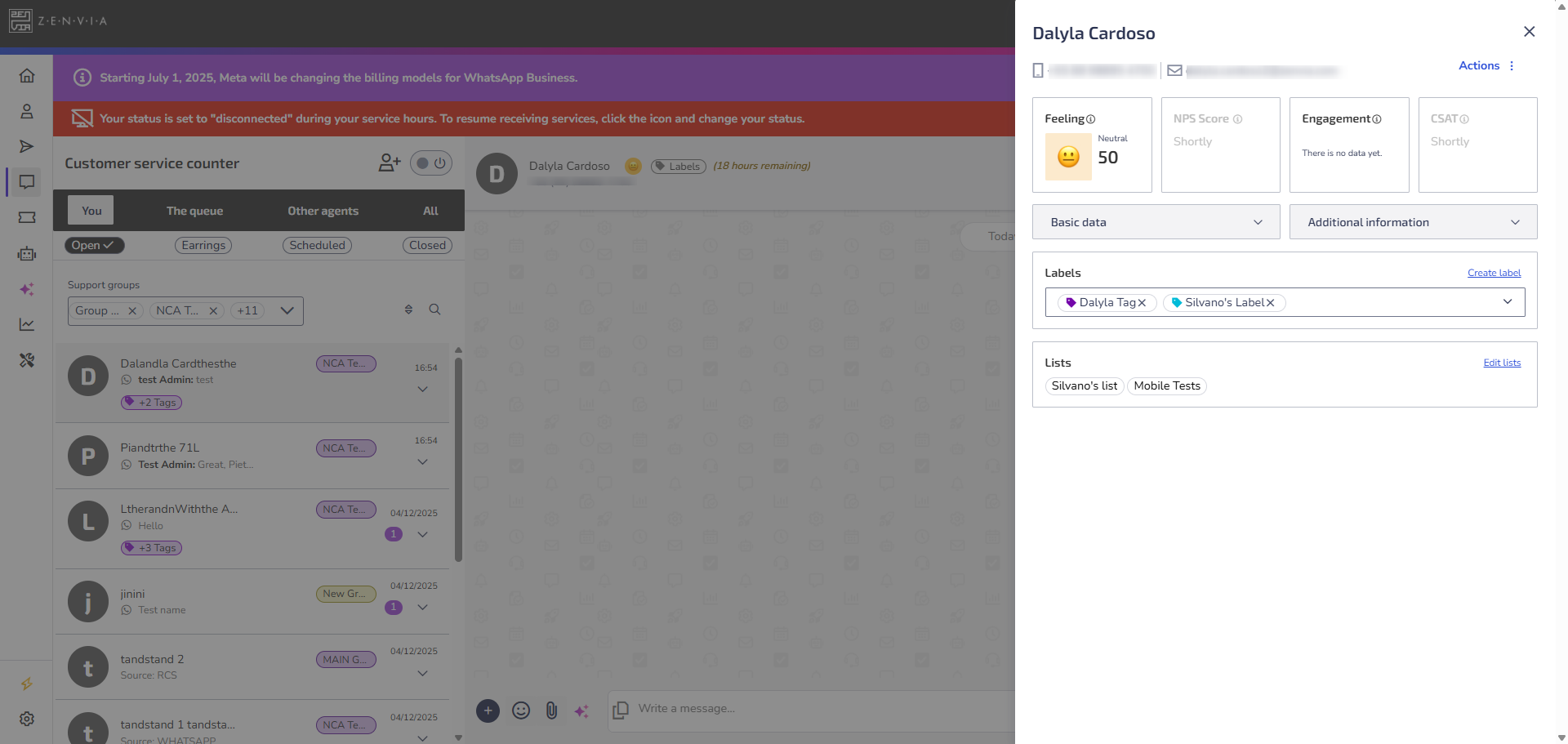
The contact side panel is a card that appears on the right side of the screen whenever you open or interact with a contact in Zenvia Customer Cloud.
It allows you to view, edit, and manage contact details without leaving the current screen, making your workflow faster and more seamless.
Where it appears
You can access the panel from different areas of the platform:
Commercial service
Click the (i) icon located on the right side of the conversation. This instantly opens the contact’s information.
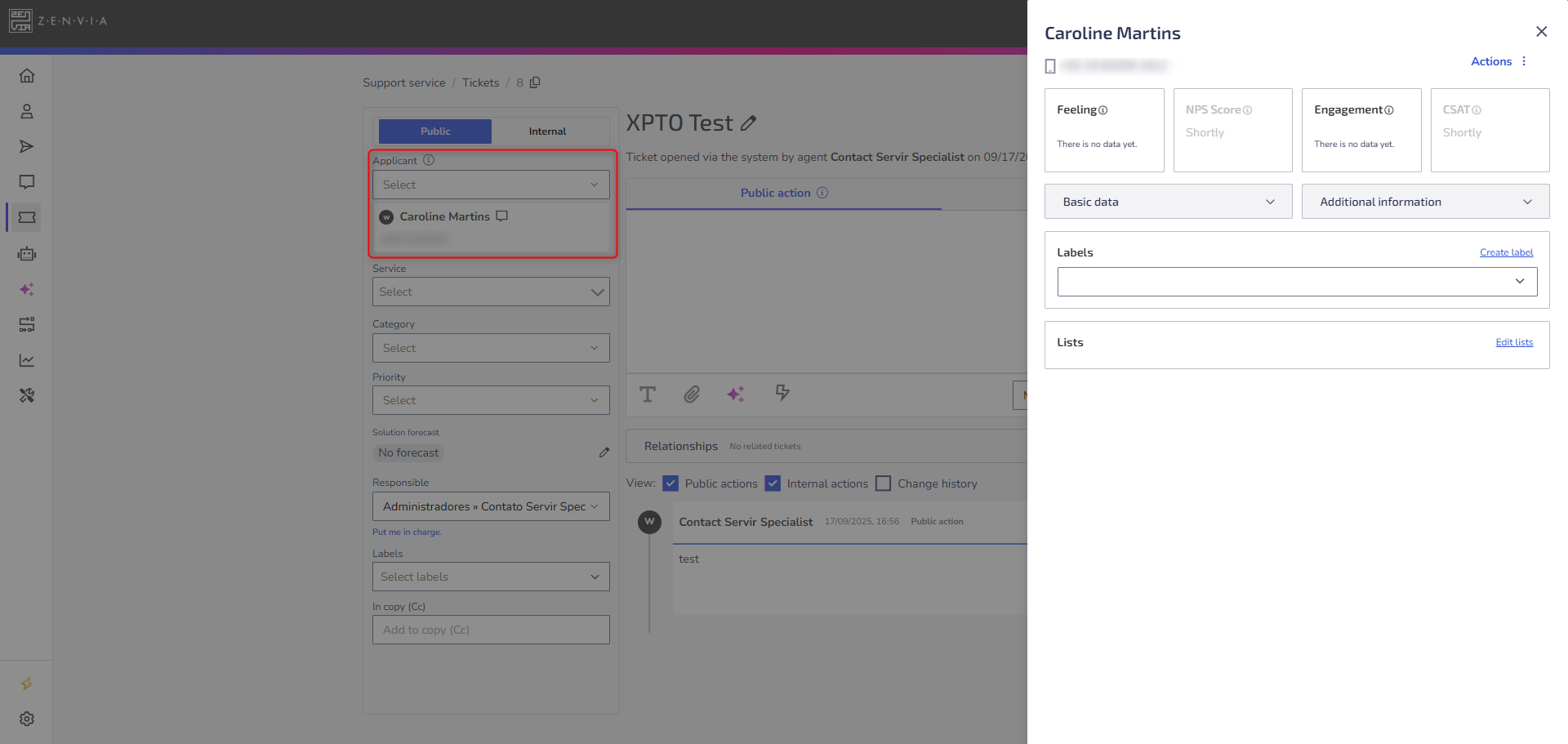
Customer support
In Tickets: Select the Applicant from the left panel. The contact side panel will open automatically.
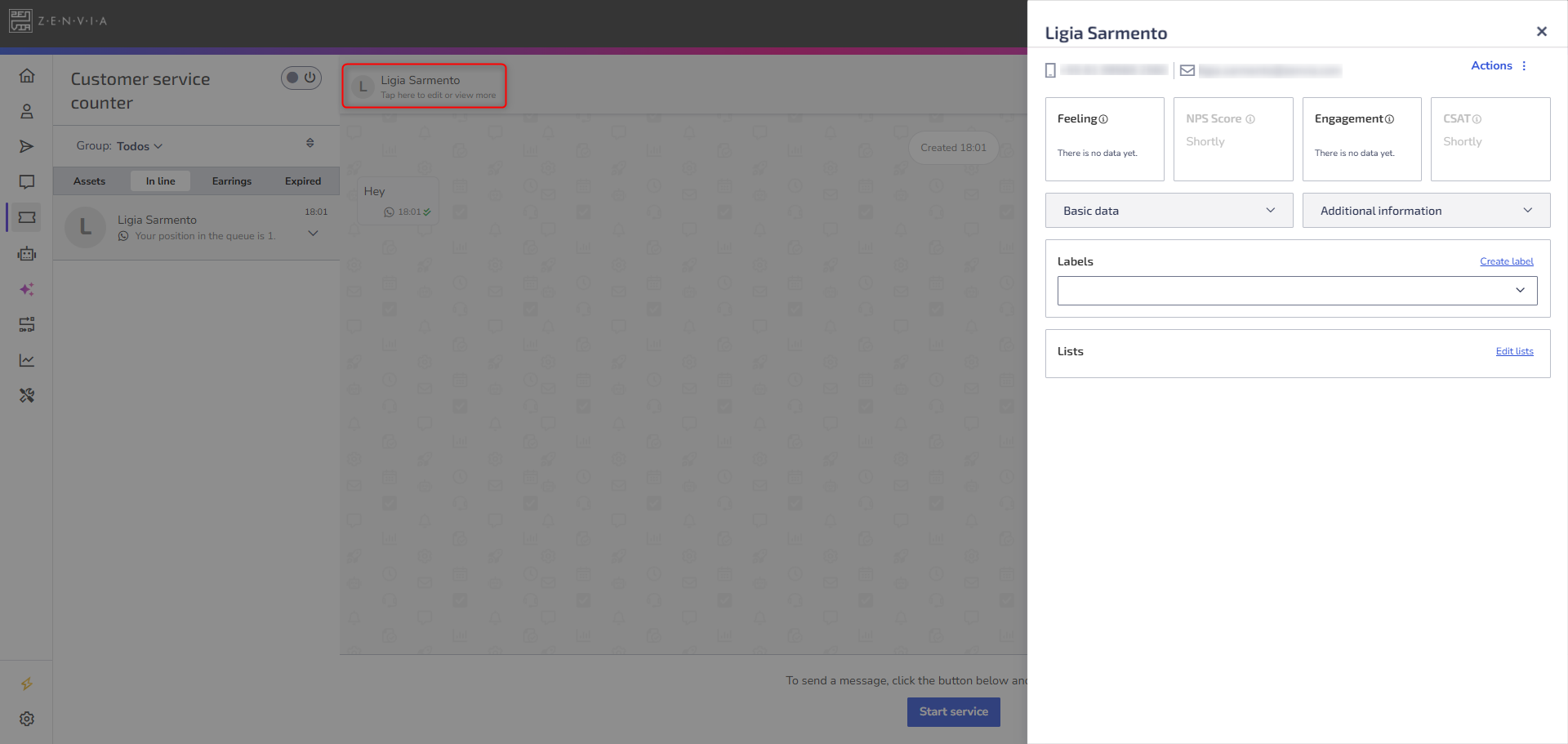
In the inbox: Click the contact’s name at the top of the screen to open the panel.
Chatbots
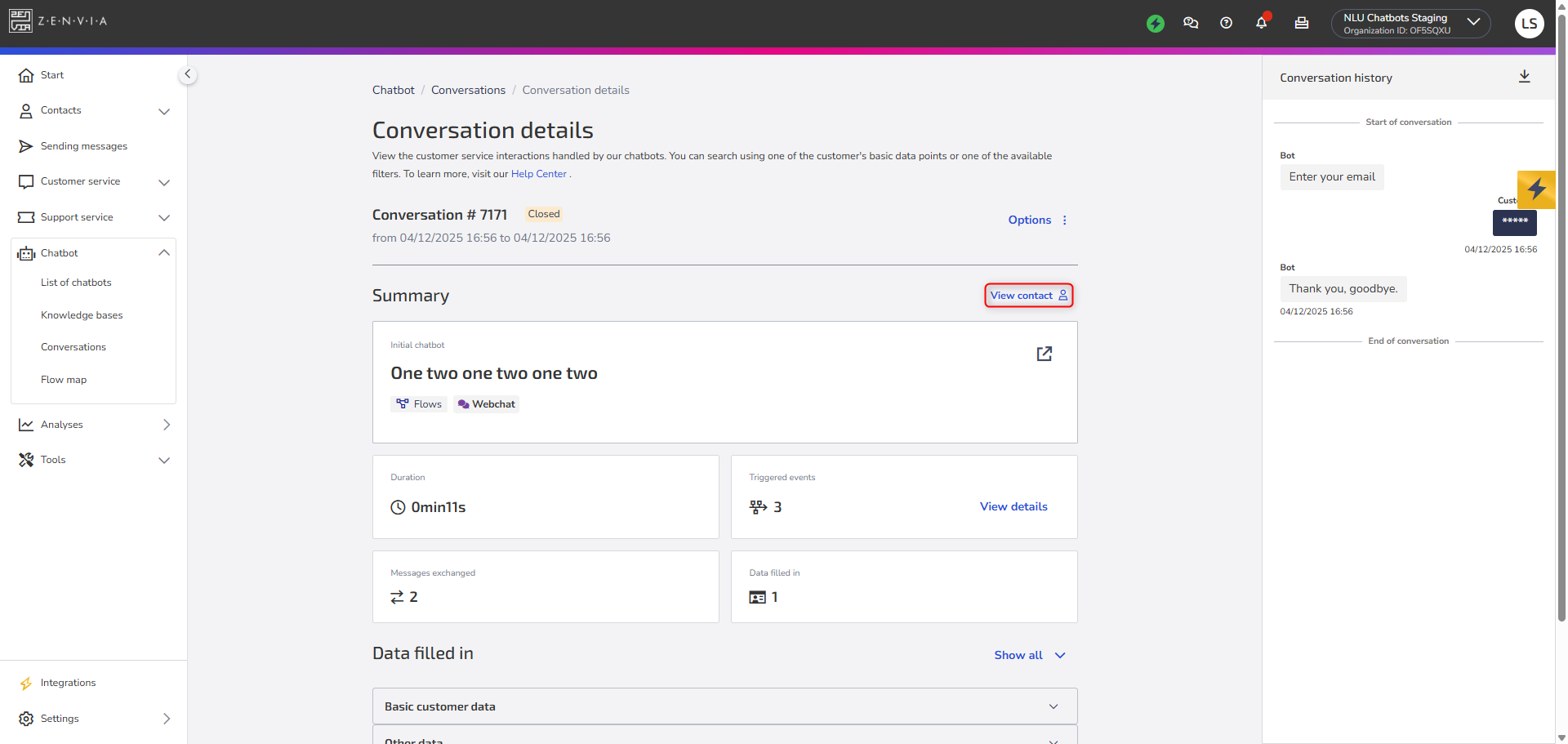
Go to Conversations, select an interaction, and click View contact.
What you can view and do in the panel
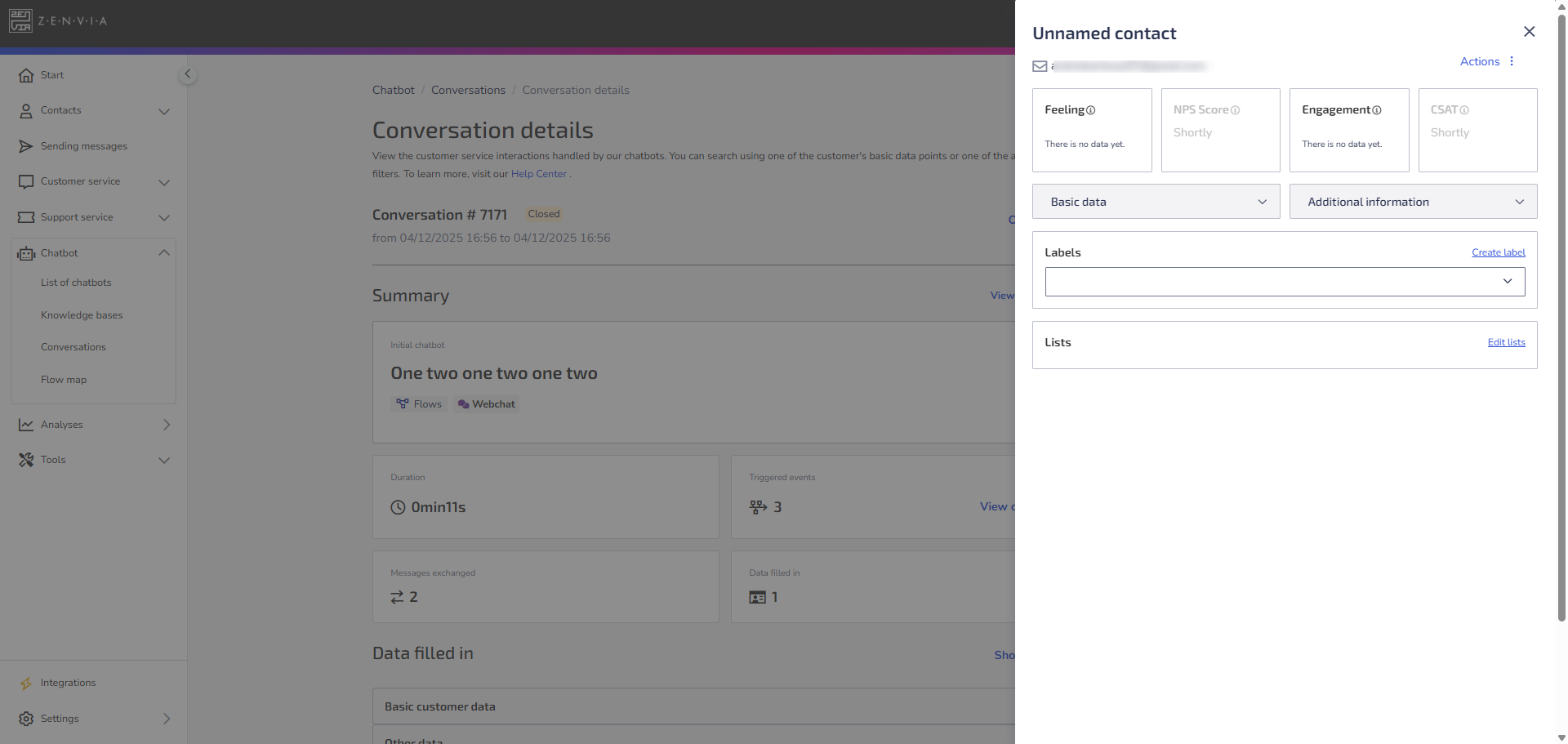
The panel organizes the contact's information into clear sections:
Contact data: name, phone, email
Sentiment and engagement, when available
Basic details: origin, creation/update dates
Additional information: custom fields, company, department
Tags and lists the contact belongs to
Editing information directly in the panel or Viewing the full contact profile
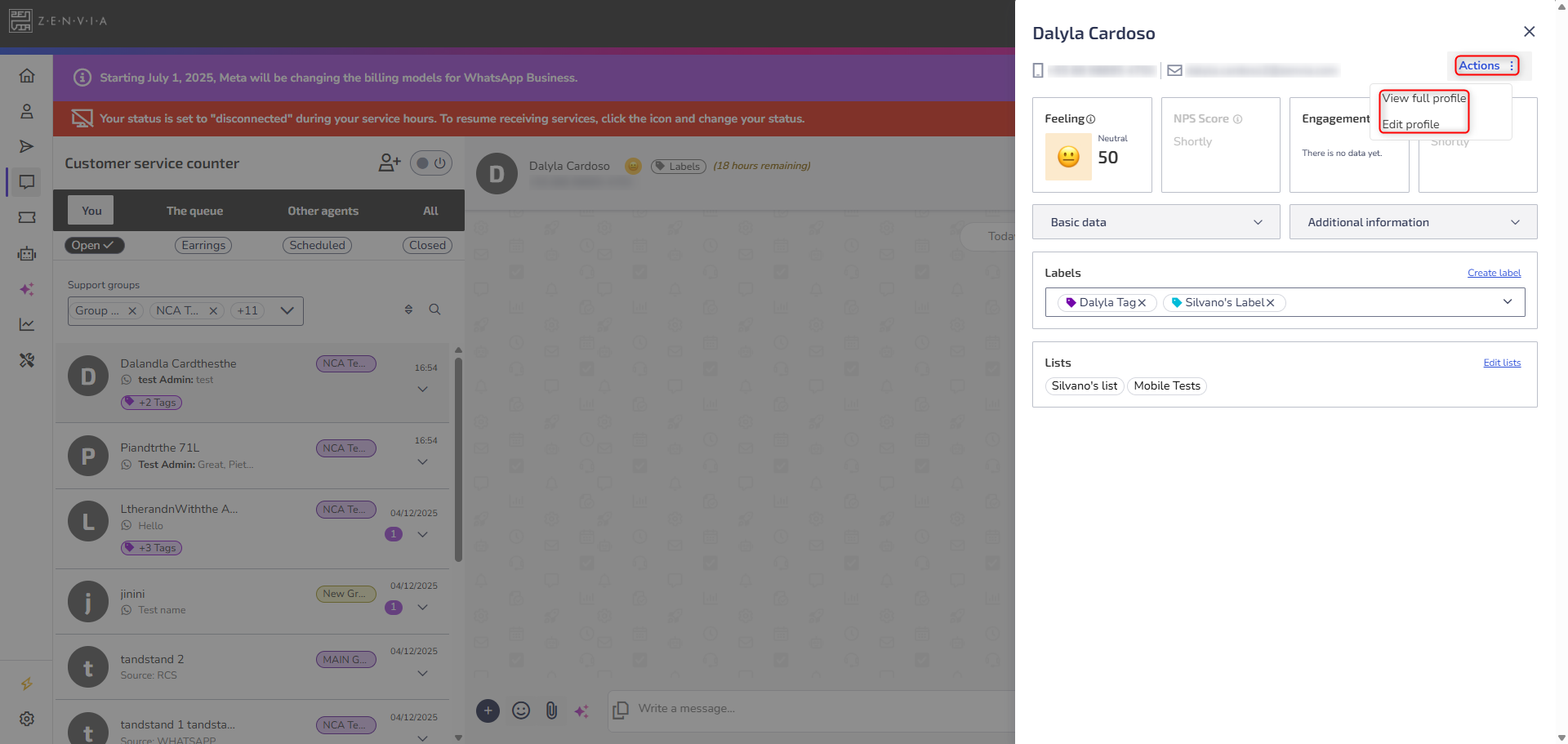
You can update the contact’s main data without opening another screen:
Click Actions
Select Edit profile
Update the required fields
If you need more detailed information:
Click Actions
Select View full profile
You will be redirected to the Contacts Base.
Managing tags and lists
Within the same panel, you can:
Create LABEL
Add or remove existing tags
Create new lists
Edit existing lists